Stills 26.1: Better Photos From Video on iPhone, iPad, and Mac
Stills 26.1 makes finding and saving a favourite video frame more enjoyable, with smoother controls, photo enhancement, flexible exports, and a fresh look across iPhone, iPad, and Mac.
Written by Maulik Sutariya
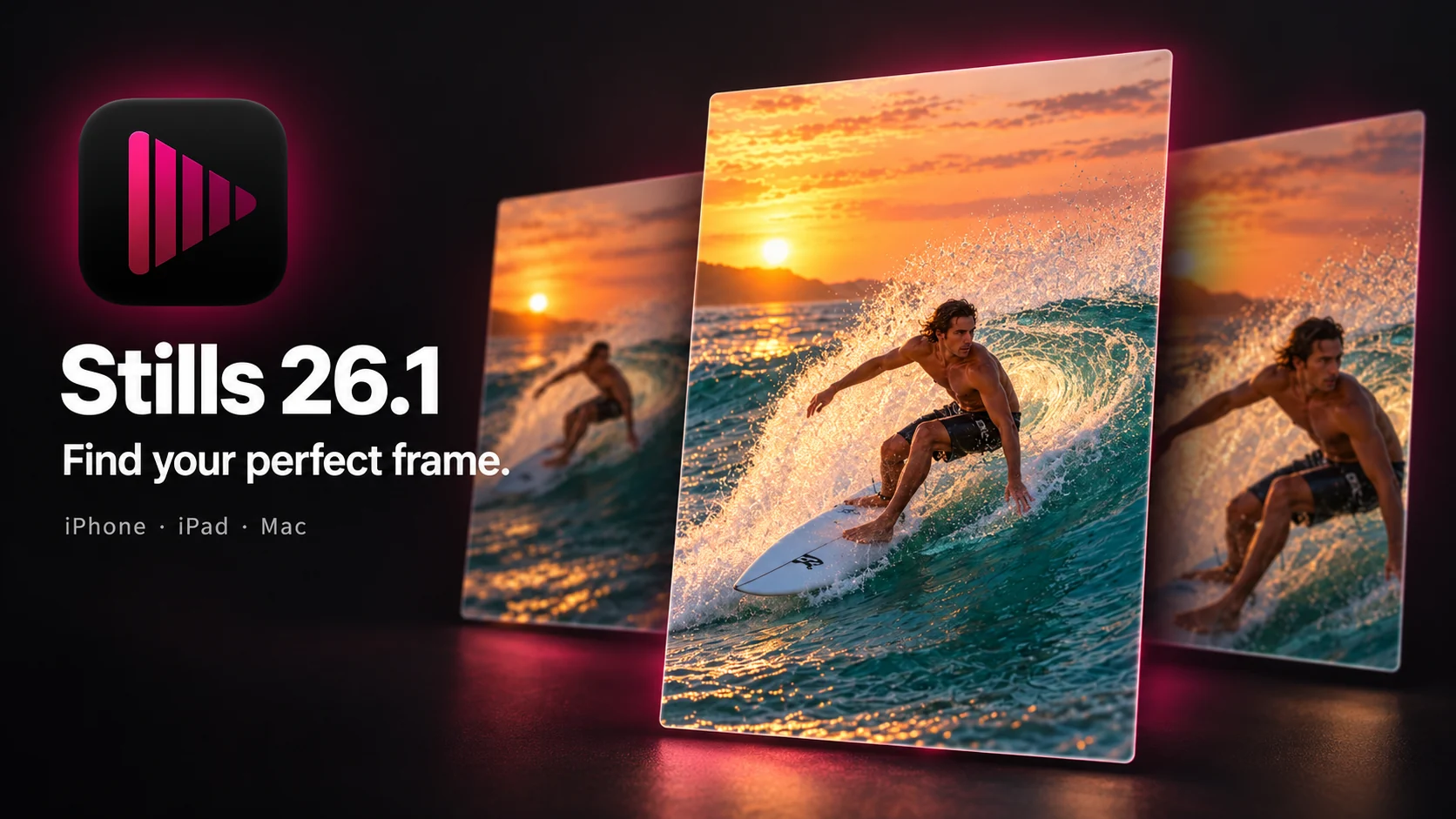
Sometimes the photo you want is already inside a video. It might be a smile during a birthday celebration, a bird taking flight, a dancer in midair, or the moment a wave breaks around a surfer. The challenge is finding that frame and saving it comfortably.
That is what I build Stills for. Stills 26.1 is now available for iPhone, iPad, and Mac, with a fresh look and improvements throughout importing, choosing a frame, refining the photo, and exporting it.
The simple workflow remains: import a video, move through its frames, and save the moment you love. This update gives you finer control and more ways to make the experience your own, while keeping your video and the resulting photo at the centre.
Save Full-Resolution Photos From Videos
Stills supports 4K, Full HD, slow-motion videos, time-lapse videos, and Live Photos. You can save a selected frame at the original video’s resolution, rather than relying on a screenshot of the video player.
The source still matters. A frame from a lower-resolution video has that video’s resolution; 4K support does not turn every video into a 4K photo. The same applies to motion blur and focus: choosing a better moment in the recording is a useful first step before making any adjustments.
With 26.1, Stills is free to download, and you can save and share full-resolution JPG photos without watermarks. Premium adds the enhancement tools, additional export options, and more personalisation choices described below. Previous paid users keep lifetime Premium access.
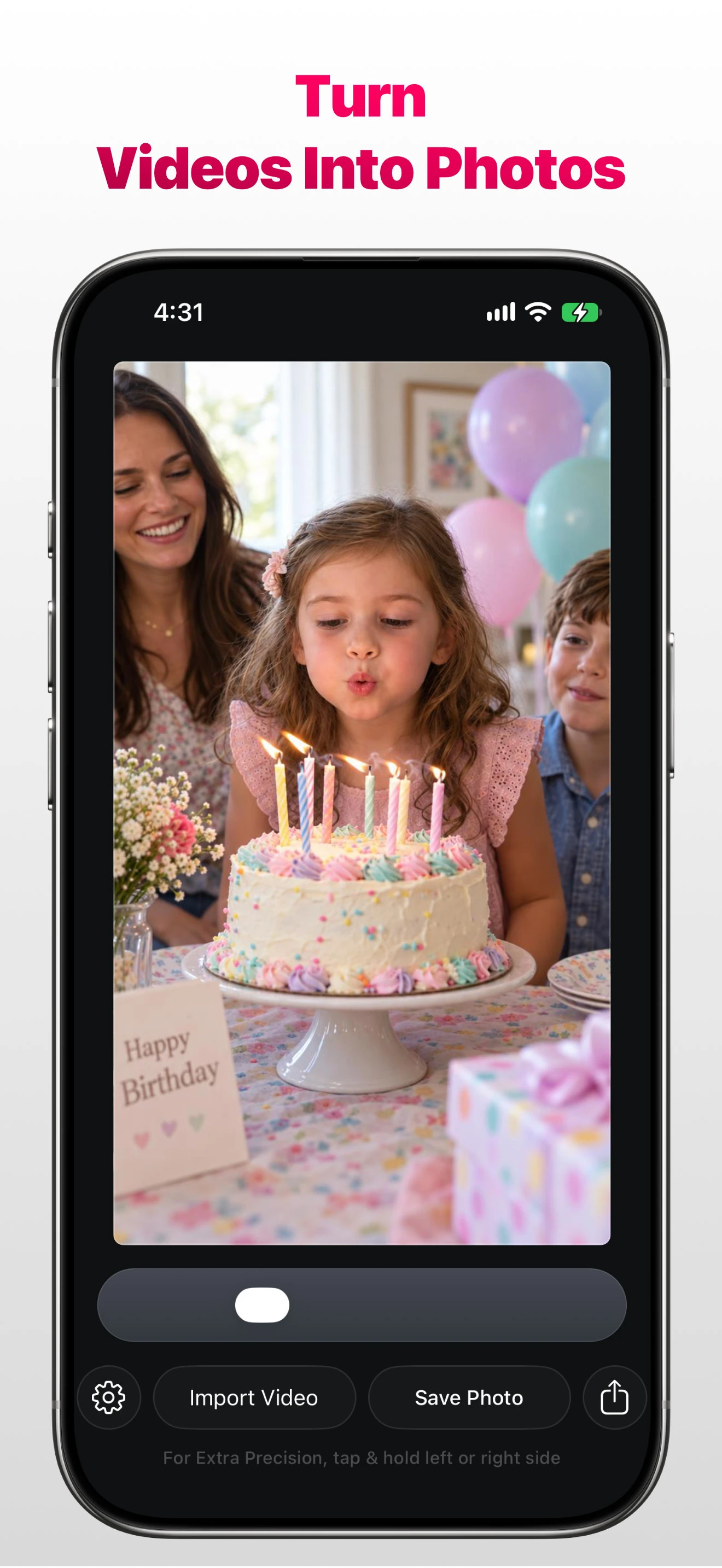
Find Your Frame With More Precision
Choosing a photo from video is often about a very small difference between frames: an expression, the position of a hand, or the instant before a subject moves away.
Stills 26.1 improves scrubbing, so moving through a video feels smoother. Precise frame-by-frame controls help you make smaller adjustments once you are close to the moment you want. There is also better handling of edited videos and more room to zoom when examining your selection.
The frame-selection slider has received attention too. Classic has a softer animation, while Filmstrip has improved previews. You can use the preview to navigate the recording, then slow down and refine the selection when the right moment comes into view.
Easier Video And Live Photo Imports
Import from Photo Library, Files, or Finder, according to the device and source you are using. Stills works with both videos and Live Photos, with faster preparation in this update.
The refreshed import experience includes an optional Photo Library or Files menu, clearer portrait thumbnails, smoother browsing, and Favorites above Live Photos. Stills also remembers your browsing position, making it easier to continue looking through your media.
These are small changes, but they matter when you are finding a recording among many others. The goal is to spend less time navigating and more time choosing the photo.
Stills For Mac: More Room To Work With Your Video
The Mac is an important part of Stills. A larger display gives you room to look at the frame itself, move through the recording, and examine details before saving a photo.
Import From Finder And Choose A Frame
For videos stored on your Mac, Finder imports let you work with your local recordings. Once imported, you can scrub through the video and use the precise frame controls to refine your choice. For extra precision on Mac, click and hold the left or right side of the slider to move through frames carefully.
That is useful when the moment you want is close, but a broad slider movement would move past it. You can take time to compare neighbouring frames and choose the expression or movement you prefer.
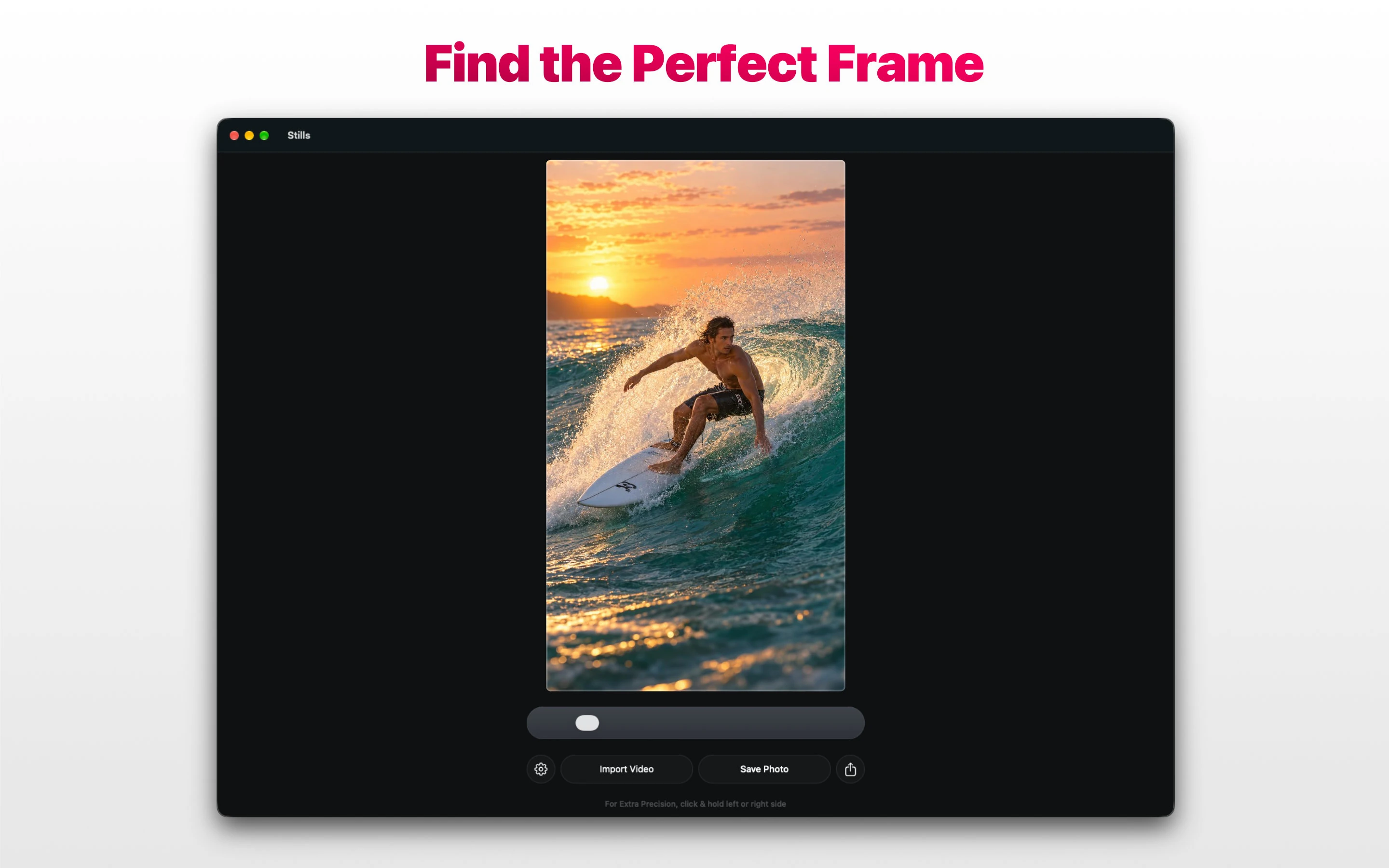
Refine, Compare, And Export On Mac
The Stills experience includes photo enhancement, Smart Fusion, and a zoomable comparison preview, alongside JPG, PNG, and HEIC export choices. The sections below explain the Premium tools and supported HDR formats so you can choose what fits your photo.
On Mac, exported photos are saved locally in the Stills folder inside Pictures. That gives your saved moments a familiar place to find them afterwards. You can also choose a different Dock icon to personalise the app’s appearance on your Mac.
The Mac workflow shares the same purpose as the iPhone and iPad versions: find the frame, inspect it, and save a photo. Platform-specific import and saving details follow the device you are using.
Refine The Photo With Premium Enhancement Tools
After choosing the frame, you may want to adjust its appearance. Stills Premium brings these controls together:
- Tone & Color: adjust light, tone, and colour.
- Noise Reduction: reduce grain in the selected photo.
- Sharpening: refine the appearance of detail.
- Smart Fusion: combine detail from nearby video frames to refine your selected photo.
Smart Fusion uses neighbouring frames as additional source material. The starting video and selected moment still influence the result; it is not a promise that every blurry or noisy frame can become perfectly sharp.
The Enhancement Preview lets you zoom in and compare the original with the enhanced photo. You can try the zoomable Before/After preview before upgrading, so you can judge the result on your own image.
I want that comparison to help you decide what looks right. A subtle adjustment can be enough, and the preview gives you a way to check rather than simply assume that a stronger effect is better.
Choose Your Export Format, HDR, And Date
JPG, PNG, And HEIC
You can save and share full-resolution JPG photos without watermarks. Premium adds PNG and HEIC exports, giving you more format choices for your saved frames.
Choose the format that suits where you will use the photo. Stills keeps that choice separate from finding the frame, so you can focus on the moment first and then decide how to save it.
Preserve HDR Where Supported
Stills Premium supports preserving HDR in supported JPG and HEIC exports, giving you a way to retain HDR when working with a supported source and format.
Date Saved Or Original Video Date
The Export Date option lets you choose Date Saved or Original Video Date. You can decide whether the photo should use the date you saved it or the date associated with the recording.
When saving to Apple Photos with album access, exports go into the Stills album. On iPhone and iPad, saving to the photo library requires the appropriate permission; Mac’s local export location is described above.
A Fresh Icon And More Ways To Personalise Stills
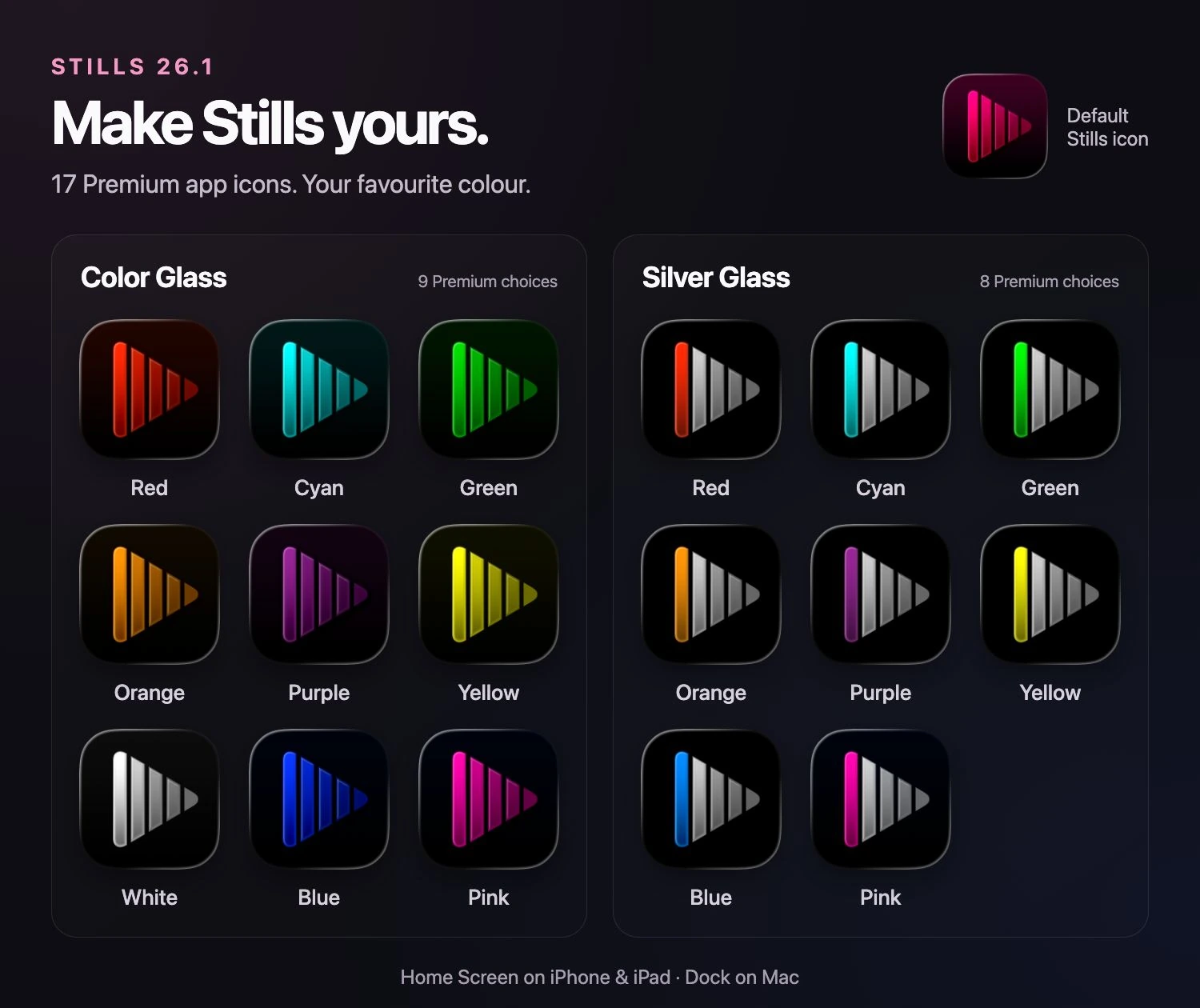
Stills 26.1 introduces a new app icon, alongside 100 new Premium slider designs and 17 Premium app icon choices.
Color Glass And Silver Glass App Icons
With Stills Premium, you can choose an app icon that suits your Home Screen on iPhone or iPad. On Mac, your chosen icon appears in the Dock while Stills is running.
The Color Glass collection has nine colours: red, cyan, green, orange, purple, yellow, white, blue, and pink. Silver Glass pairs a coloured leading frame with silver frames, with eight colour choices. The gallery below shows every Premium choice alongside the default Stills icon.
Slider Designs And Accent Colours
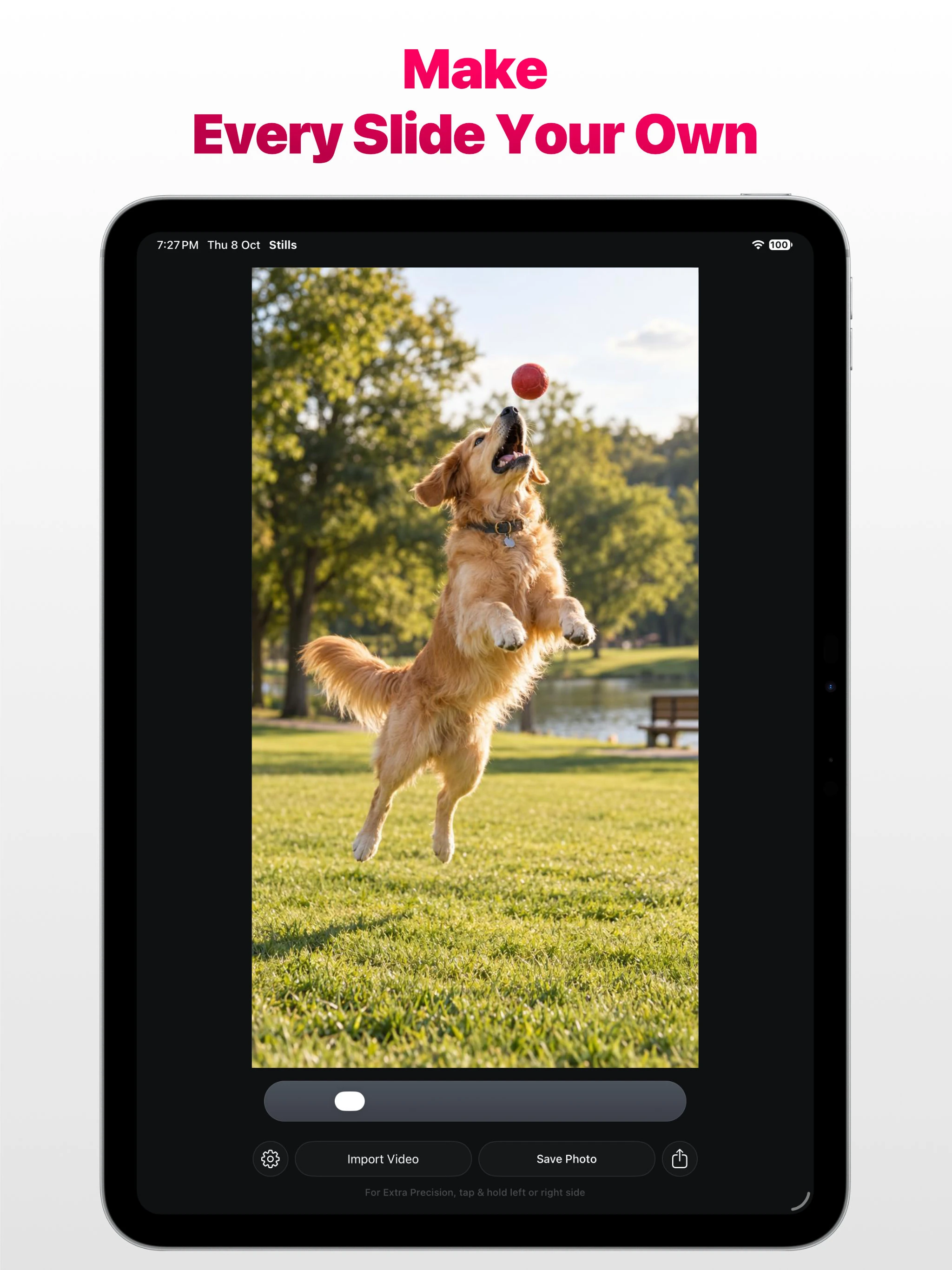
The frame slider is something you use throughout the app, so its appearance should feel enjoyable without getting in the way. You can choose a Slider Style, use the improved Classic or Filmstrip presentation, and add Grab Handle Glow, which brightens and dims the slider handle.
There are also fruit-inspired accent colours, with Raspberry as the default. The bottom buttons can stay white or match your chosen accent.
These options bring some playfulness to an app with a practical purpose. You can keep the look simple or choose the details you enjoy.
Premium Across Apple Devices And Family Sharing
Stills Premium supports Family Sharing. You can enjoy Premium across your iPhone, iPad, and Mac, and share access with your Family Sharing group.
Stills also follows the Universal Purchase approach used by my apps. Your Stills purchase works across its supported Apple platforms. This is access to Stills; each of my other apps has its own purchase.
The lifetime Premium commitment in this update applies specifically to previous paid Stills users.
Simpler Settings, Clearer Feedback, And Better Translations
There is more to the update than the tools used on the main screen. Stills 26.1 includes simpler Settings, new Help and About the Developer sections, an in-app Privacy Policy, and updated legal links.
I have also improved sharing, save confirmations, navigation, and translations across all 11 supported languages, with fixes throughout the app. Clear feedback matters when saving a photo: you should be able to understand the result of the action you just took.
Your Videos Stay Yours
Stills extracts frames on your device. It does not upload your videos or exported photos to a server for processing, collect user data, track your activity, send usage events, show ads, or sell your data. This is a lifetime privacy promise.
You can read the full Stills Privacy Policy and Terms & Conditions.
Find A Moment Worth Keeping
Whether you are choosing a Live Photo frame on iPhone, looking through a recording on iPad, or working with a video from Finder on Mac, I hope Stills 26.1 makes the process easier and more enjoyable.
Thank you to everyone who uses Stills and shares feedback. Those suggestions help me improve both the larger features and the small details around them.
Find a moment worth keeping. Save it with Stills.