Photo Refinery for iOS 27: A Fresh Look and Finer Detail
The new Photo Refinery update is available for iPhone, iPad, and Mac, with Liquid Glass on supported devices, finer enhancement controls, and new ways to refine photos and artwork.
Written by Maulik Sutariya
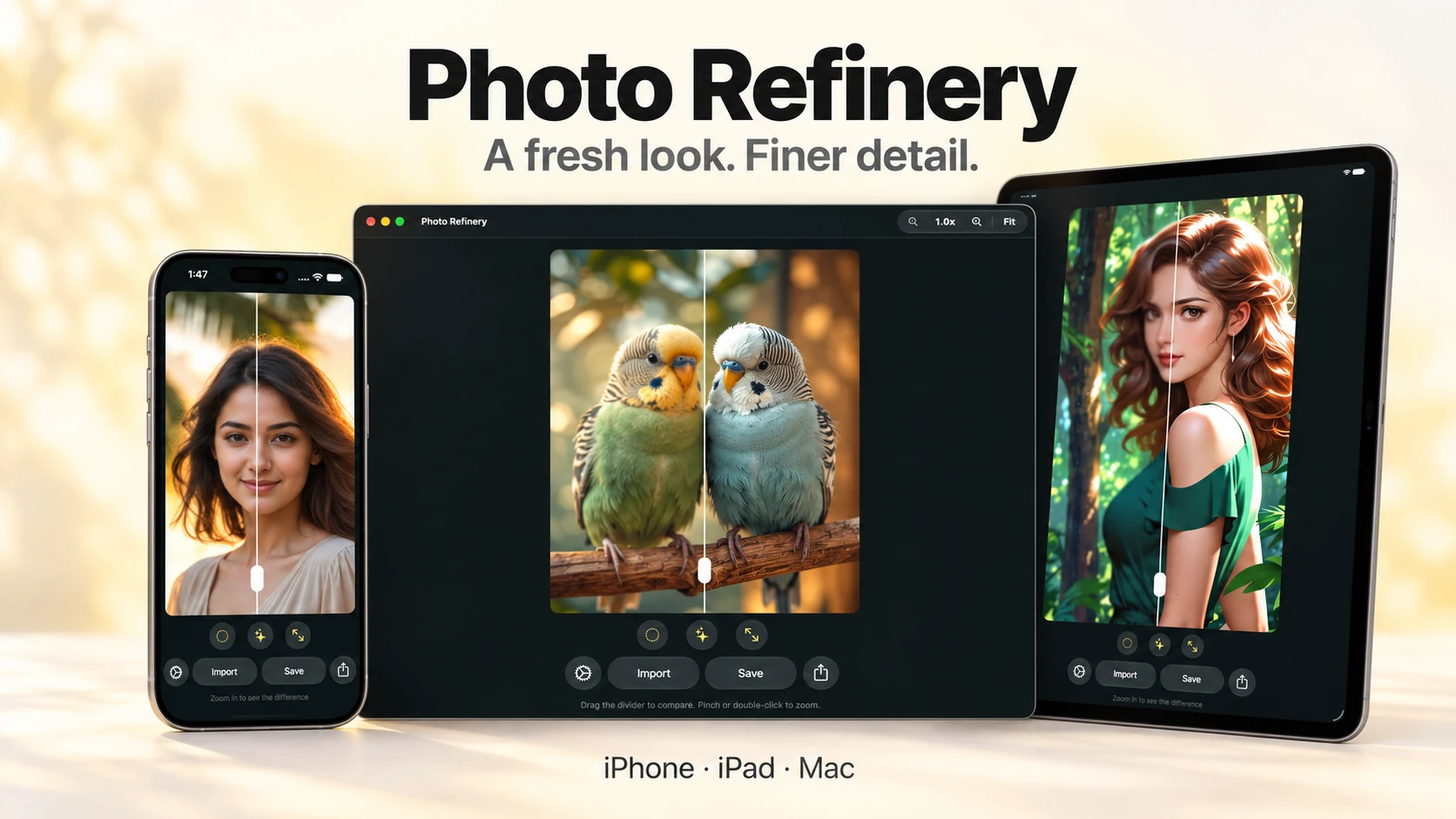
The new Photo Refinery update is now available on the App Store. It adds support for iOS 27, iPadOS 27, and macOS 27, refreshes the interface with Liquid Glass on supported devices, and gives you more control over how your photos and artwork are refined.
As the developer and designer of Photo Refinery, I wanted this update to make two things better together: the experience of working with an image and the choices you have over its final appearance.
There is a fresh app icon, a simpler editing area, new Fine Detail and Grain controls, a Restore Soft Images option, and dedicated Natural and Flat styles for anime and artwork. The update also includes smaller improvements to comparison, exporting, Premium access, and everyday reliability.
A Fresh Look For iPhone, iPad, And Mac
Photo Refinery now supports iOS 27, iPadOS 27, and macOS 27. On supported devices, the refreshed interface adopts Liquid Glass, alongside an updated app icon with a fresh look.
I have also simplified the editing controls below your image. The photo remains the focus, with the tools you use to refine it gathered underneath. Whether you are working on a phone or a larger screen, the aim is to make the next adjustment easier to find.
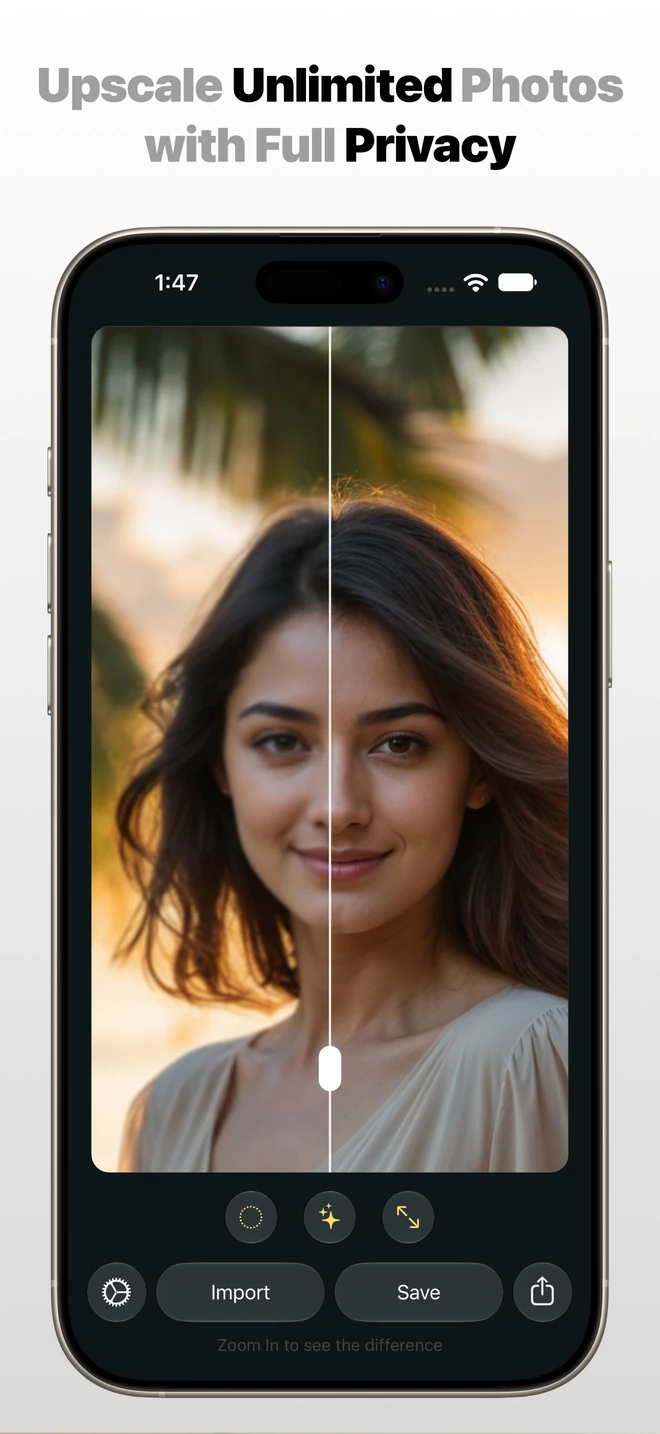
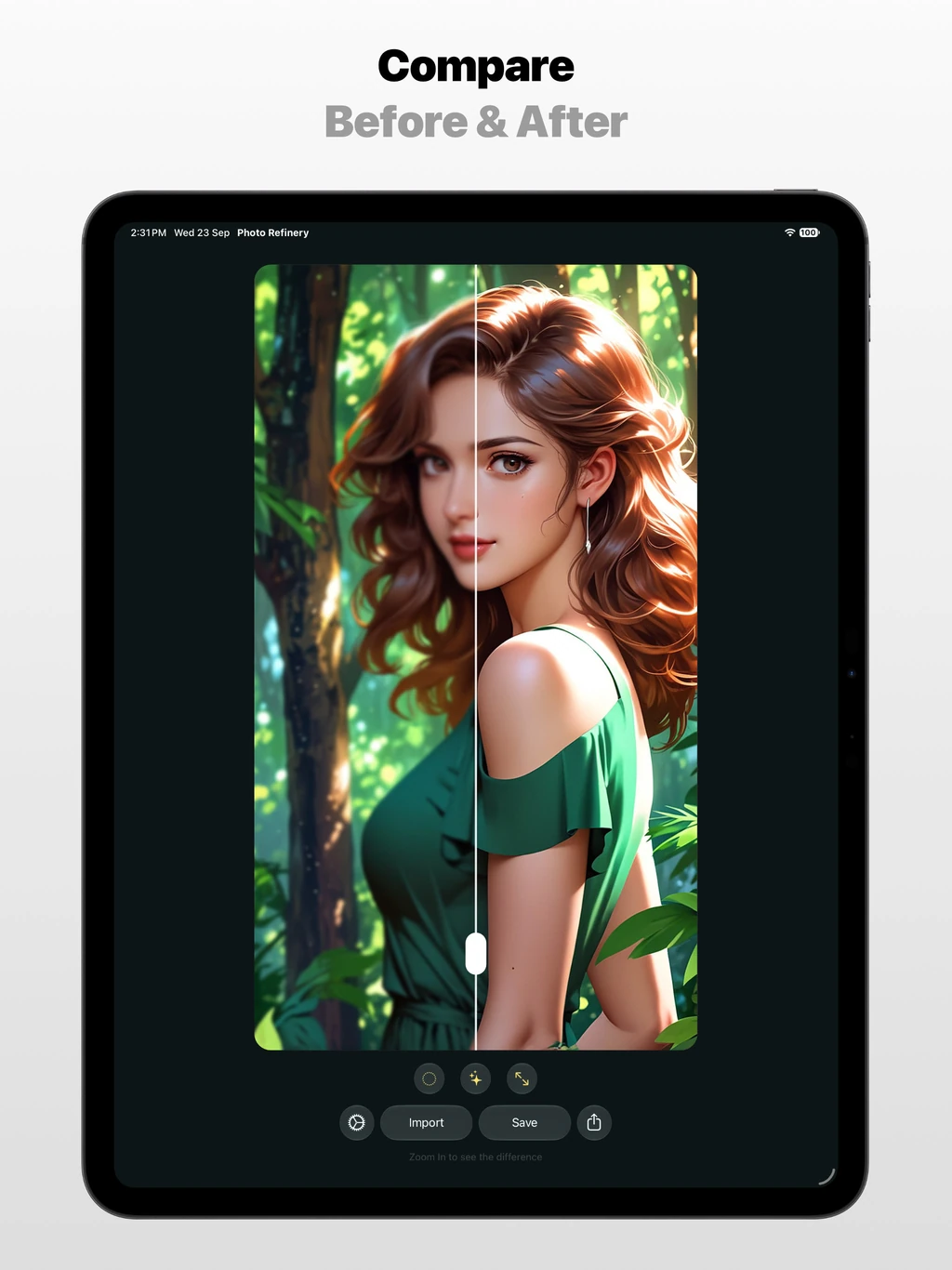
The Before & After comparison slider is easier to see, too. That matters when you are checking small details: you should be able to move the divider and judge the result without having to search for the handle.
More Control Over Detail And Texture
Not every photograph benefits from the same finish. Some images need a little more definition; others look better when they retain a softer, textured character. This update adds two controls for those decisions.
Fine Detail Enhancement
Fine Detail is a new enhancement option designed to improve image clarity. It gives you another way to refine a photograph when you want its smaller details to read more clearly.
Use the Before & After view to judge the effect on your own image. The source still matters, and stronger enhancement is not automatically a better result. Comparing the original and refined image helps you find a finish that suits the photograph.
Adjustable Grain
The new Grain adjustment adds a subtle textured finish. It gives you control over that texture, so you can decide how much belongs in the final image.
I have also improved the automatic enhancement settings for photographs. You can start with the automatic result, inspect it, and then use the available controls to refine the appearance further.
Restore Soft Images: Help For Larger, Blurry Photos
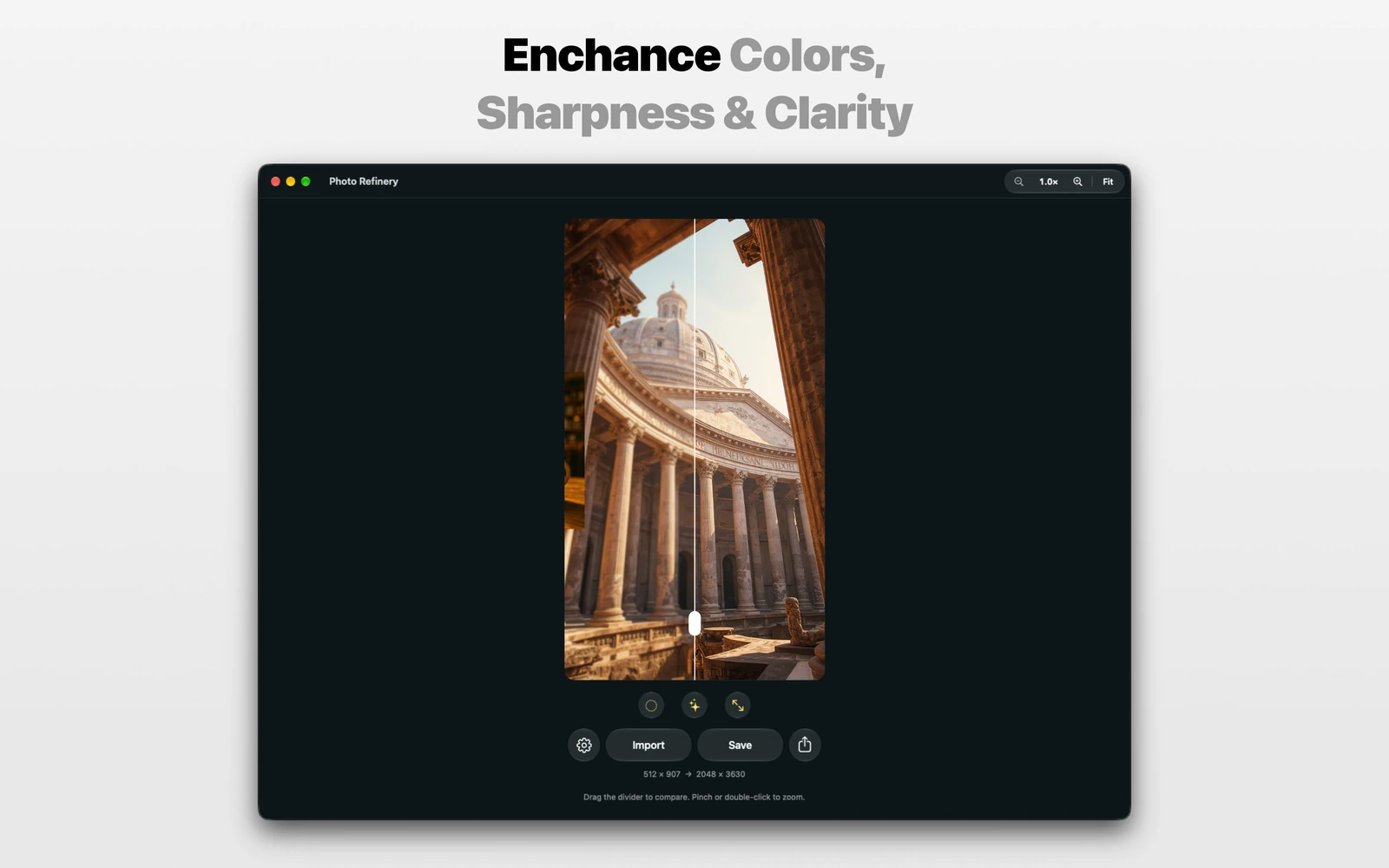
A photo can have plenty of pixels and still look soft. The new Restore Soft Images option is designed for larger, blurry images, giving those photos a dedicated place in the enhancement workflow.
If you have an image that is already large enough but lacks clarity, this is an option to explore. As with any photo restoration, results depend on the original. The useful question is whether the refined version makes the image clearer and more usable for you.
If you are new to upscaling, my guide to improving blurry and low-resolution photos on iPhone, iPad, and Mac explains the basic workflow and how to assess a result.
Natural And Flat Styles For Anime And Artwork
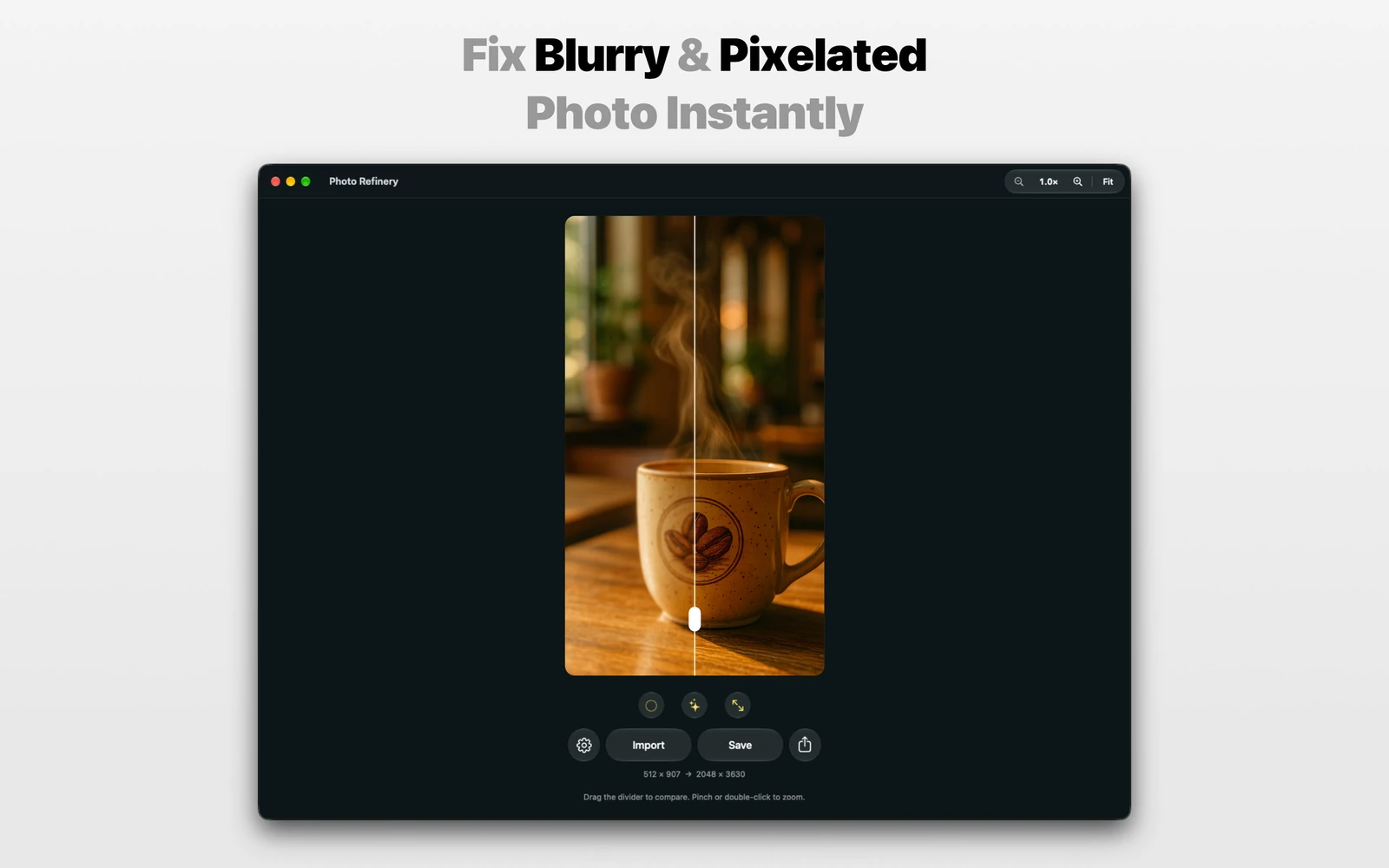
Illustrations have their own character: line work, shading, color, and texture all contribute to the image. This update adds Natural and Flat styles for anime and artwork, giving you two choices to compare on the same source.
When using Flat style, there is also a new option to preserve artwork texture. That gives you more say in how the texture is treated as you refine the piece.
Try both styles and look closely at the parts that matter to your artwork. The comparison slider can help you decide which treatment better suits its lines, surfaces, and overall appearance.
Better Transparent Edges And Lower Memory Usage
This release improves the edges of transparent images. For artwork and graphics with a transparent background, the boundary around the subject is an important part of the result, so it deserves attention alongside the detail inside the image.
I have also reduced memory usage during image processing. Photo Refinery continues to process images on your device for privacy, and using that device’s resources more efficiently is an ongoing priority.
Flower-Inspired Colors And More Export Choices
You can now personalize Photo Refinery with nine flower-inspired accent colors, including eight Premium options. It is a small way to make the workspace feel more like your own.
For Premium users, the update adds maximum export-size choices, giving you more control over the size of the image you save. This lets you choose a maximum size that fits how you plan to use the result.
There is also a new Manage Premium entry in Settings, and I have improved how Premium access updates after a purchase. Together, these changes make managing and using your purchase more straightforward.
Photo Refinery supports Universal Purchase across iPhone, iPad, and Mac, so your Photo Refinery purchase works across its supported Apple platforms.
More Reliable Saving And Improved Translations
The update fixes an issue where Photo Refinery could show an incorrect save-success message when saving had failed. The message should reflect what actually happened, so you can tell whether your image was saved successfully.
Translations have also been improved throughout the app. Clearer wording matters in everyday actions, settings, and adjustments, just as much as it does when a new feature is introduced.
Try The New Photo Refinery Update
The update is available now on the App Store for iPhone, iPad, and Mac. If you already use Photo Refinery, open its App Store page and update the app to try the new tools. Liquid Glass appears on supported devices; check the App Store listing for compatibility with your device and operating system.
Start with a photo or illustration you know well. Compare the original with the refined result, try the controls that suit the image, and choose the finish you want to keep.
Thank you for using Photo Refinery and supporting my work. If you have a question or feedback about the update, you can contact me directly.